
Print any pattern at full size.
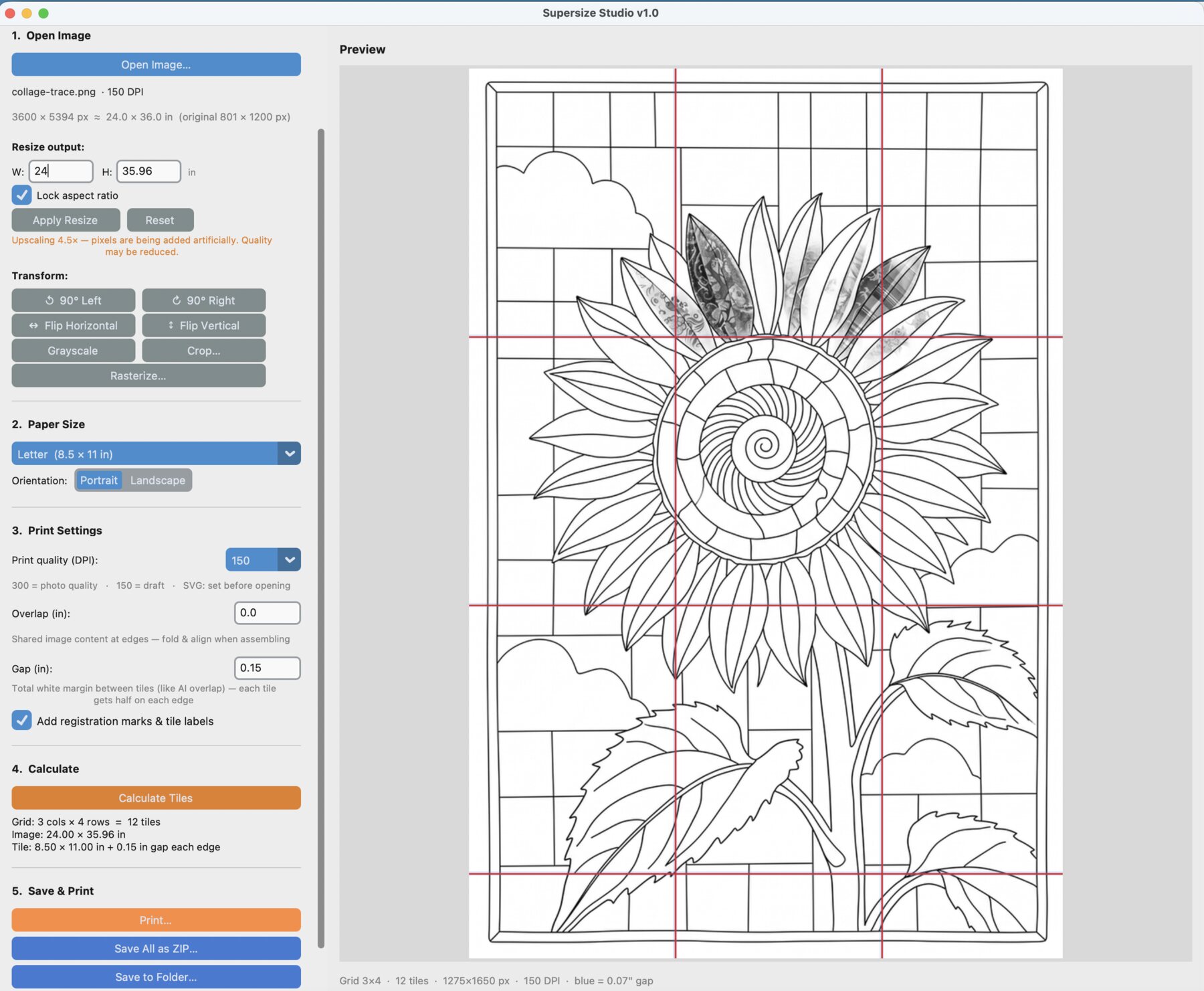
SuperSize Studio blows up any image to the exact size you need and splits it across as many letter or A4 pages as it takes. Print the tiles on the printer you already have, then line them up and tape or glue them into a full-size pattern, banner, mural, or stencil. No plotter, no print shop.
Mac, Windows & your browser · one-time purchase · free bug fixes forever
Three steps from screen to full size
No design experience needed — type a size and SuperSize does the tiling for you.
- 1
Open your image
Open any picture or pattern — a TraceWorks outline, a chart, a photo, a logo. Anything you'd like bigger.
- 2
Set the finished size
Type the width or height you want, in inches or centimetres. SuperSize works out how many pages it takes.
- 3
Print and assemble
Print the tiles on any printer, line them up by the registration marks, and tape or glue them together.
Tiles that line up every time.
Every page prints with registration marks and a tile label, so assembling a big pattern is paint-by-numbers — not a puzzle.
Choose overlap to repeat a strip of the image on neighbouring tiles for folding and taping, or glue gaps to leave a clean margin for pasting tiles edge-to-edge. Set the print quality and your lines stay crisp, even at mural size.
Get SuperSize Studio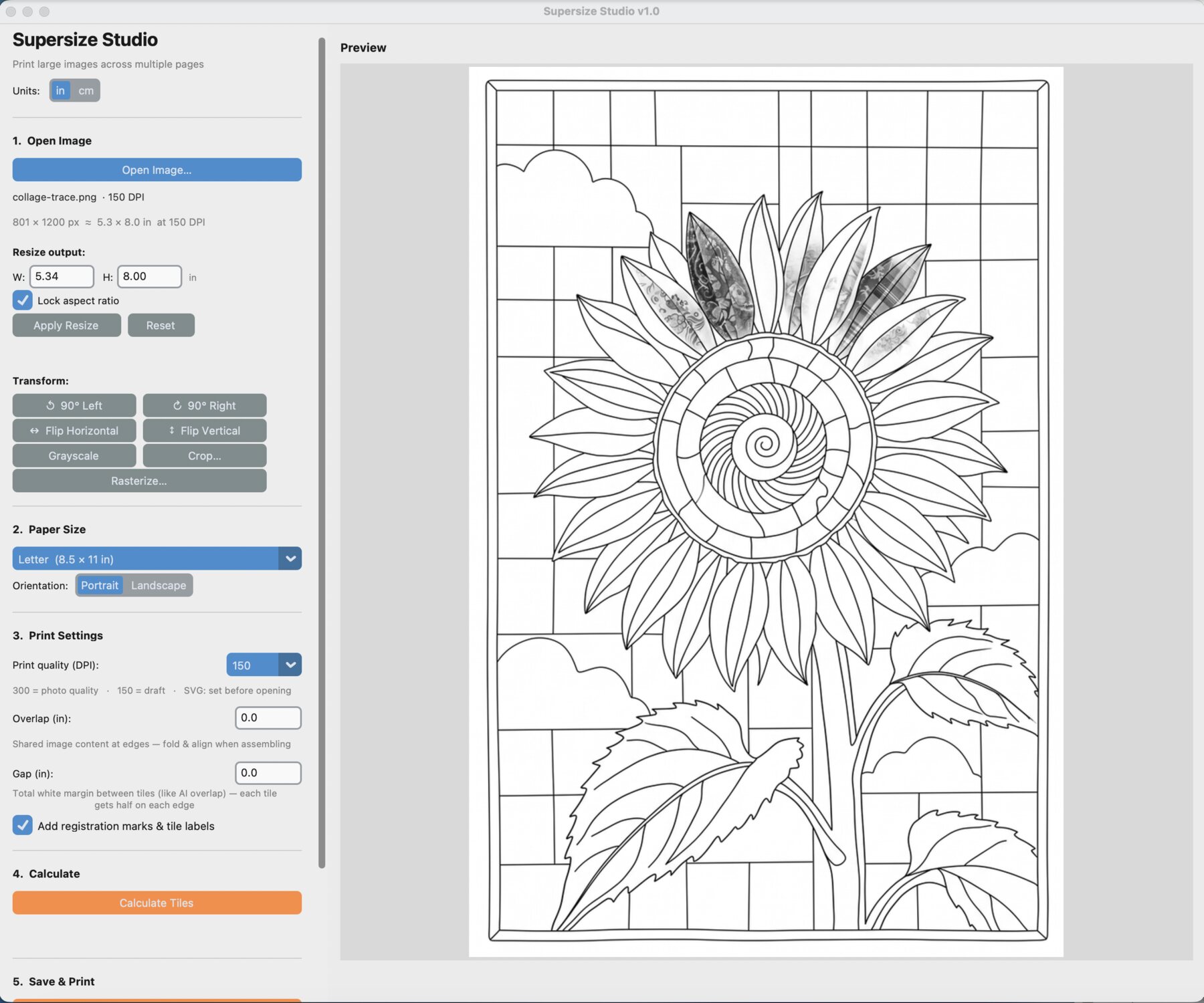
Everything you need, nothing you don't
Any size, exactly
Scale to a precise width or height in inches or centimetres — from a tea towel to a barn quilt.
Any printer works
Letter or A4, portrait or landscape. If it prints a page, it can print a SuperSize pattern.
Assembly made foolproof
Registration marks, tile labels, and your choice of overlap or glue gaps so every sheet lines up.
Crisp at full size
Dial in the print quality (DPI) so your lines stay sharp no matter how big you go.
Pairs with TraceWorks
Send a finished TraceWorks pattern straight here to size it and tile it for printing.
Runs on your machine
Mac and Windows. Your images stay yours — no account, no internet, nothing collected or stored.
One price. Yours for good.
No subscription, no renewals. Buy it once and keep it.
- Lifetime access — buy once, own it
- Free bug fixes, forever
- 12 months of product updates included
- Desktop app for Mac (Apple Silicon, M1 or later) & Windows 10/11
- Includes SuperSize Studio Web — use it in the browser on iPad, iPhone & tablets
Runs entirely on your computer — no subscription, no account, and no internet connection or API key required. Install it and print.
Questions, answered
Do I need to be good with computers?
No. Open an image, type the size you want, and press print. The screens are large, plainly labelled, and walk you through each step.
Can I use SuperSize Studio on my iPad or iPhone?
Yes — through SuperSize Studio Web, which is included free with every license. The Mac and Windows versions are computer programs and can't be installed on a tablet or phone — but your same license key unlocks SuperSize Studio Web at supersizestudio.blazingconcepts.co/app, which runs right in the browser on iPad, iPhone, Android tablets, Chromebooks, and any computer. Same tiling controls, same registration marks, and it saves a ready-to-print multi-page PDF. iPad tip: in Safari, tap Share and choose "Add to Home Screen" to give it its own icon, just like a real app.
Does it work on my computer?
Yes — SuperSize Studio runs on both Mac and Windows. Mac: requires an Apple Silicon Mac (M1 or later, 2020 onward). Windows: Windows 10 or 11. You buy the version for your computer and install it like any other app.
How do I install it on my Mac?
The same way as any other Mac app. Supersize Studio is signed and checked by Apple, so your Mac opens it without any security warning. Three steps:
- Double-click the downloaded .dmg file. A window opens — drag the Supersize Studio icon onto the Applications folder, then close that window.
- Open your Applications folder and double-click Supersize Studio.
- The first time, your Mac asks if you're sure you want to open an app downloaded from the internet. Click Open, and that's it.
Seeing a warning that the app can't be checked for malware? You have a copy downloaded before September 19, 2026. Download it again from your order page (the link is in your receipt email) and the warning is gone.
The Windows download warns me — "isn't commonly downloaded." Is it safe?
Yes — that message is your browser being extra careful with software from smaller companies. The installer is digitally signed, but browsers hide new files until you confirm you want them. Three quick steps:
- Click the Downloads icon near the top-right of your browser (a small downward arrow — or press Ctrl+J to open the downloads list).
- Find the SuperSize Studio Setup.exe file, click the "..." menu (or "Keep") beside it, and choose Keep — if it asks a second time, choose "Keep anyway."
- Click the file to run it. If Windows shows a blue "Windows protected your PC" screen, click "More info," then "Run anyway." The installer takes it from there.
You only do this once — after installing, it opens like any other program. The warning fades on its own as more people download each new version.
Does it need the internet?
No. SuperSize Studio runs entirely on your own computer. No account, no API key, and no connection required — just open it and print.
What printers and paper sizes does it support?
Any printer that prints Letter or A4, in portrait or landscape. SuperSize splits your image across as many pages as the finished size needs.
What's the difference between overlap and glue gaps?
Overlap repeats a strip of the image on neighbouring tiles so you can fold and align them as you tape. Glue gaps leave a blank margin to paste tiles edge-to-edge. Pick whichever suits how you like to assemble.
How does it handle printer margins?
Every home printer leaves a small unprintable border around the page (usually about a quarter inch) — that's the printer, not SuperSize. The Gap setting is how you work with it: a gap adds a white margin around the image on each tile, pulling your pattern inward so nothing important lands in the printer's unprintable zone (and giving you a clean strip to trim and tape along). If a tile's edges get clipped, just increase the Gap a little. The one rule that matters most: when you print, set the scale to 100% / Actual Size and turn off any "Fit to page" or "Shrink to fit" option — that's what keeps your pattern at true size.
Does it work with TraceWorks patterns?
Absolutely. SuperSize is the companion to TraceWorks: make the pattern in TraceWorks, then size and tile it here for printing at any scale.
Is it really a one-time purchase?
Yes. Buy once and it's yours — no subscription. You get free bug fixes forever, plus 12 months of product updates from the date you buy.
Still wondering about something? Ask us — we answer.
Ready to print big?
Pick your version and print your first full-size pattern today.
